BreachLine.
At home on your Mac.
The workspace you know, with tools that run on your computer. BreachLine handles the models. You choose the files and applications they can work with.
The macOS installer is in final release verification. A download will appear here when it is ready.
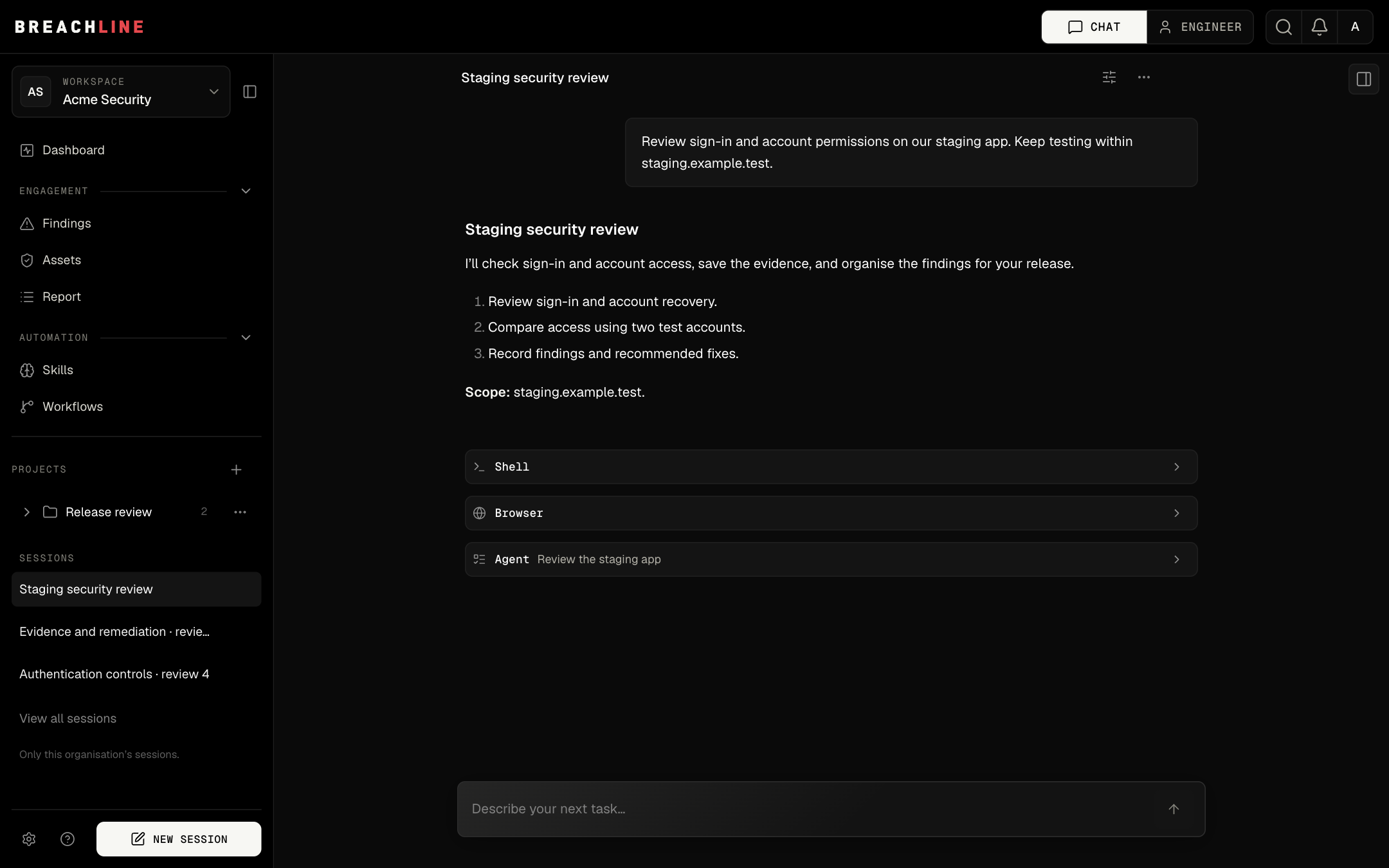
Local capabilities
Your workspace
Choose a local folder for files, shell commands and project skills. Keep your existing BreachLine conversations in sync.
Your tools
Connect local MCP servers and use a separate Chromium browser. Review imported connections before enabling them.
Your permission
Choose which applications computer tools can use. macOS controls Accessibility and Screen Recording. Remote tool access starts off.
Made for your desktop
Local tools, synced chats, and the same BreachLine workspace. Sign in with your existing account.
- macOS
- In verification
- Windows and Linux
- Planned
- Internet connection
- Required for models
A familiar setup.
- Download the macOS installer when available, open the disk image, and drag BreachLine into Applications.
- Open BreachLine, sign in through your browser, then return to the app. If you choose device sign-in, enter the code when prompted.
- Choose a workspace folder. Add MCP connections and enable only the servers you want to use.
- For computer use, open Local tools in Settings. Request Accessibility and Screen Recording access, then choose allowed applications.
Chats and tool results can be sent to BreachLine to complete your requests. Local execution does not mean offline inference or local-only chat storage.
Need help? Contact BreachLine or read our privacy policy.